Get MCP Key & Tenant ID
How to retrieve your MCP Key and Tenant ID.
To use the Links SDK or MCP Server, you often need two pieces of information:
- MCP Key (Bearer Token) for authentication.
- Tenant ID to identify your specific workspace/organization.
Quick Access: If you are already logged in, you can go directly to your MCP Key Settings.
Otherwise, follow these steps to retrieve your credentials manually:
Navigate to Settings
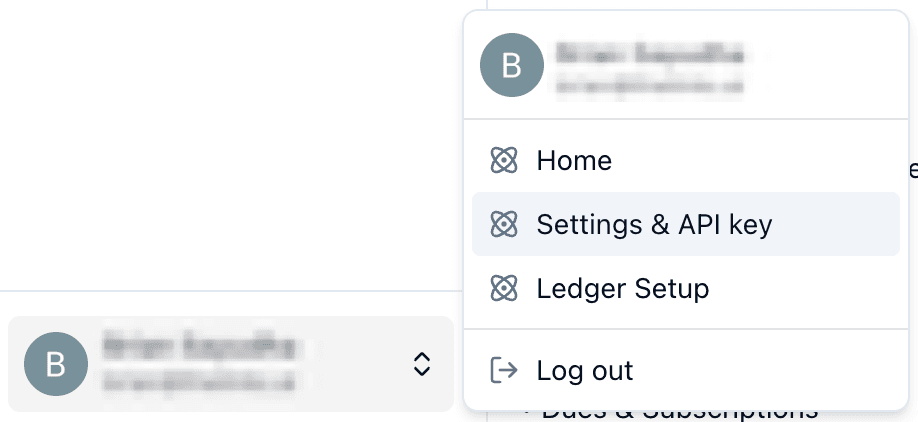
Log in to the Financial Accounting Hub. Click on your User Name in the top navigation bar to open the dropdown menu, then select Settings & MCP Key.

Open MCP Key Tab
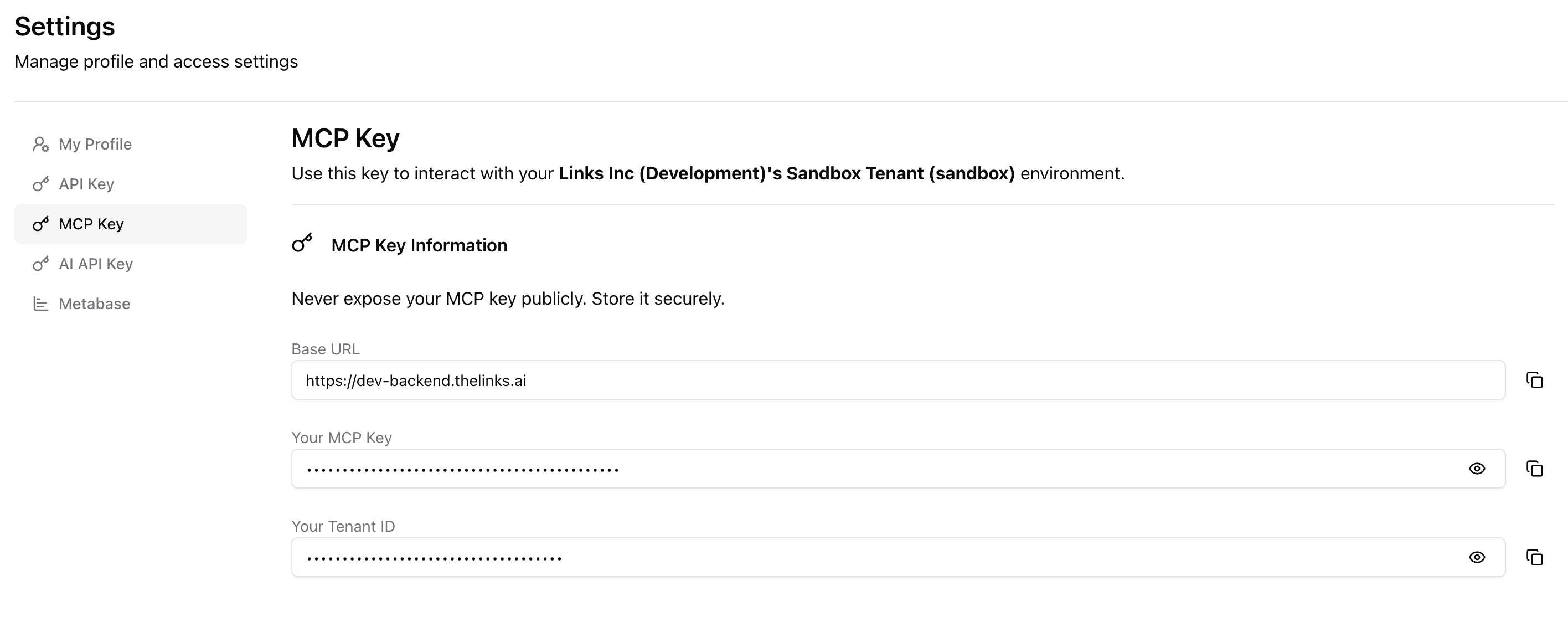
In the Settings dashboard, look for the MCP Key tab in the sidebar or top menu. Click it to view your credentials management screen.
Copy Key & Tenant ID
1. MCP Key You will see your MCP Key hidden for security. Click the Copy button (clipboard icon) to copy the string.
2. Tenant ID
Directly below your key, you will see a field labeled Tenant ID. Copy this UUID (e.g., 550e8400-e29b...) as well. You will often need to pass this tenant_id as an argument when using MCP tools.
Security Note
Treat your MCP Key like a password. Do not share it publicly. The Tenant ID is less sensitive but is required for your tools to target the correct data.
Usage Example
1. Configure Authentication
Use your MCP Key in the Authorization header of your client configuration.
  {
    "mcpServers": {
      "links-finance": {
        "command": "npx",
        "args": [
          "-y",
          "mcp-remote",
          "https://dev-backend.thelinks.ai/api/v1/mcp",
          "--header",
          "Authorization: Bearer <YOUR_MCP_KEY_OR_BEARER_TOKEN>"
        ]
      }
    }
  }
2. Use Tenant ID in Tools
When an AI tool asks for tenant_id, provide the UUID you copied above.