Claude (Web & Desktop)
Connect Links MCP to Claude using Custom Connectors or mcp-remote.
This guide explains how to connect Claude to the Links MCP Server. By connecting the systems, Claude can securely access your published data sources and accounting workflows.
New Feature
Claude now supports Custom Connectors natively. This is the recommended, no-code way to connect your workspace. For users who prefer the legacy terminal method on desktop, the Local Config File method is still available.
Prerequisites
What you need before starting
Ensure you have completed the following:
- Have an active Claude Account (via the Web app or the Desktop App).
- Retrieved your Links MCP Key.
- (Optional) Have Node.js installed (only required if you choose the Local Config File method below).
Configuration
Choose your preferred setup method below. We highly recommend using the Custom Connector.
Open Claude Connectors
- Open Claude (Web or Desktop).
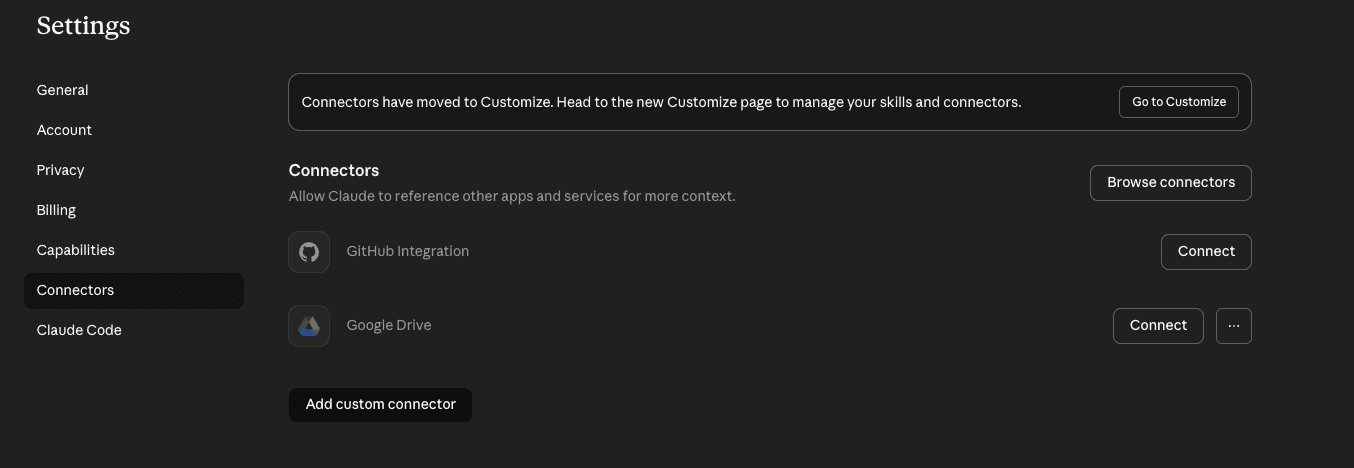
- Click on your profile name in the navigation bar and select Settings.
- Navigate to the Connectors tab.
Add Custom Connector
- Click the Add custom connector button in the top right.
- In the modal, enter a Name for your connector (e.g., "Links Finance Hub").
- In the Remote MCP Server URL field, paste the following link, replacing
<YOUR_MCP_KEY>with your actual key:
https://dev-backend.thelinks.ai/api/v1/mcp?apiKey=<YOUR_MCP_KEY>Leave the OAuth toggle disabled. We authenticate securely via the token in the URL.
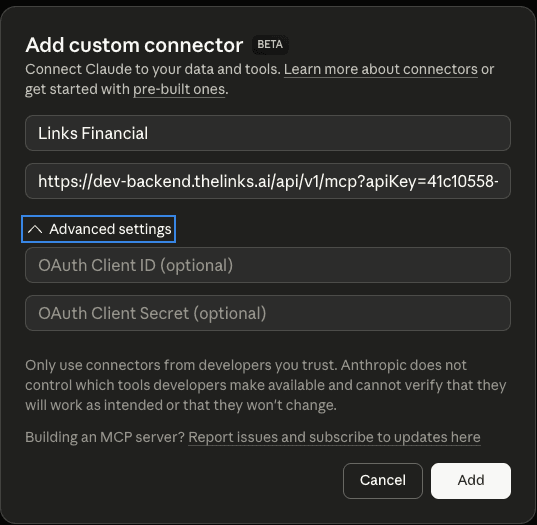
- Click Add.
Configure Tool Permissions
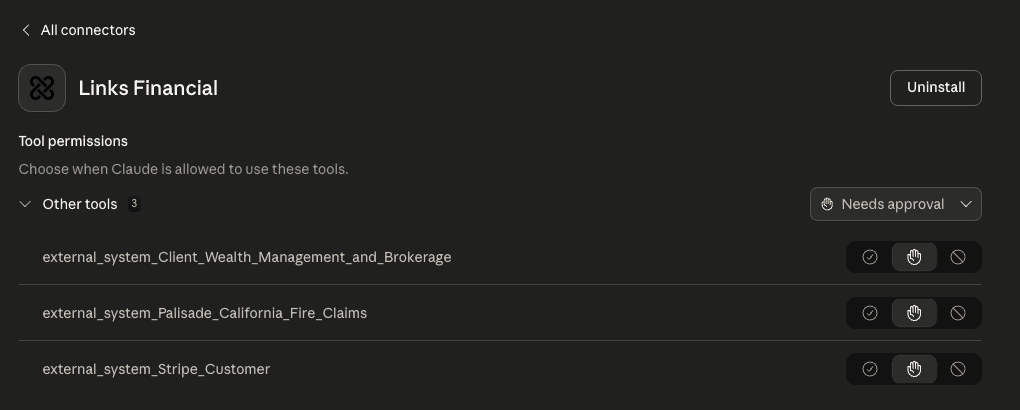
Once added, your new connector will appear in the list.
- Click Configure next to the connector.
- Set your preferred permissions for each available tool (e.g., Needs Approval, Always Allow, or Block). Note: The available tools depend on your published Inbound Connections in the Links platform.
Open Config File
You can open the configuration file directly through the Claude app or manually via terminal.
- Open Claude Desktop.
- Navigate to Settings at User Profile navigation bar.
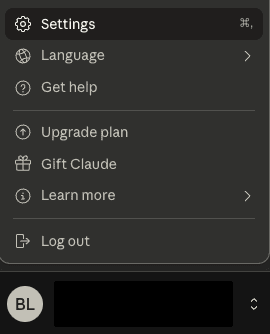
- Go to the Developer tab -> Edit Config.
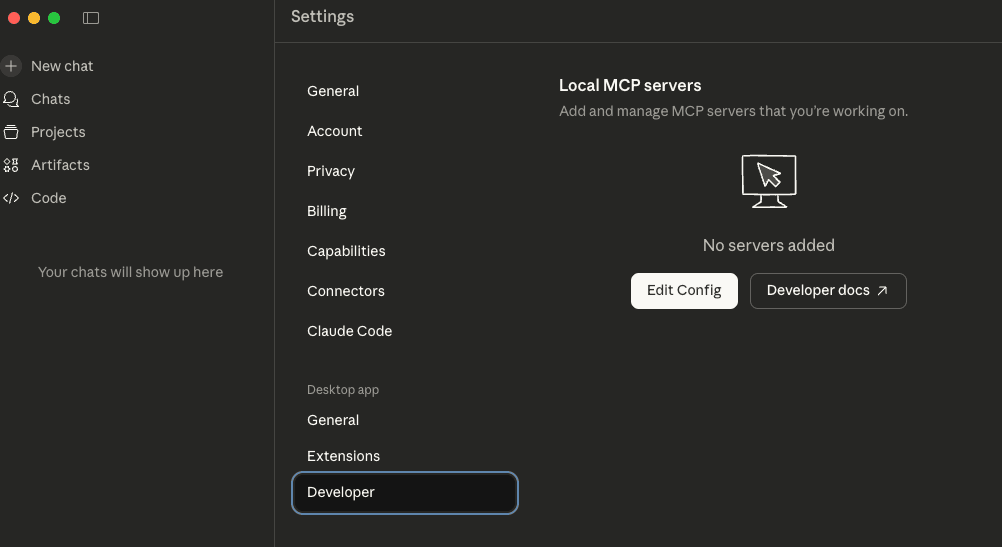
- This will open
claude_desktop_config.jsonin your default text editor (VS Code, Notepad, etc.).
Run the following command to open the file in VS Code (or your default editor):
macOS
code ~/Library/Application\ Support/Claude/claude_desktop_config.jsonWindows
code %APPDATA%\Claude\claude_desktop_config.jsonAdd Links MCP Server
Copy and paste the configuration below into your mcpServers block. We use mcp-remote to handle the HTTPS connection and Authorization header.
{
  "mcpServers": {
    "links-finance": {
      "command": "npx",
      "args": [
        "-y",
        "mcp-remote",
        "[https://dev-backend.thelinks.ai/api/v1/mcp](https://dev-backend.thelinks.ai/api/v1/mcp)",
        "--header",
        "Authorization: Bearer <YOUR_MCP_KEY_OR_BEARER_TOKEN>"
      ]
    }
  }
}
Important
Replace <YOUR_MCP_KEY_OR_BEARER_TOKEN> with your actual key (e.g., 8d4e...-sandbox). Note: Do not remove the word Bearer before your key.
Restart Claude
Save the file and fully quit Claude Desktop, then open it again.
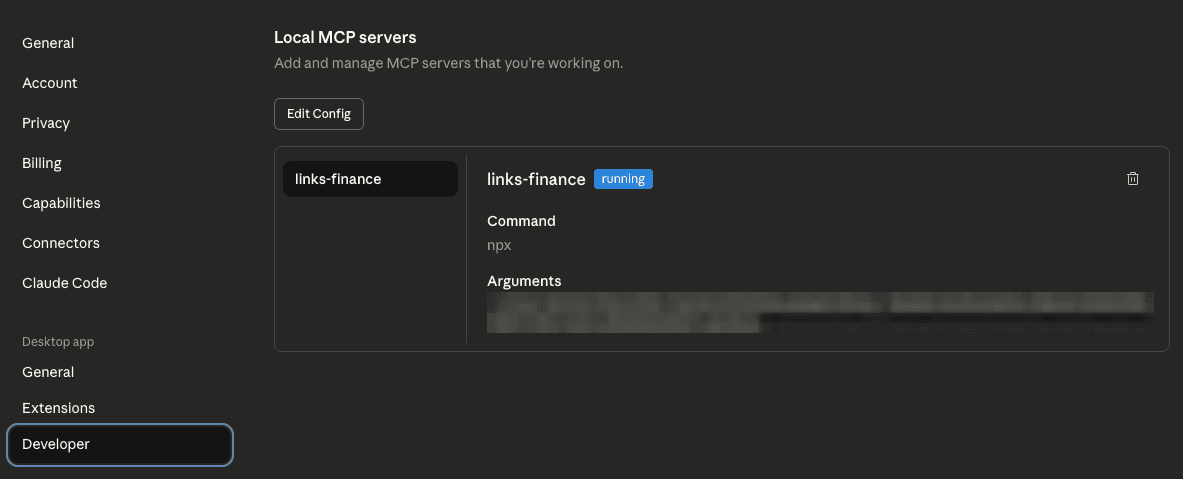
Verify Status
- Settings: Go back to Settings > Developer. You should see the
links-financeserver listed with a blue "running" status.
Test the Connection
Once you have configured the connection using either method, follow these steps to verify it works.
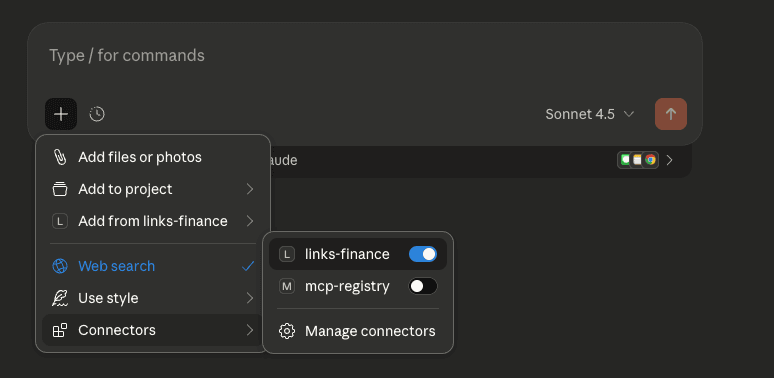
Check the Input Bar
Click the Connectors (🔌) icon in the chat input area. Ensure links-finance (or your custom connector name) is listed and enabled.
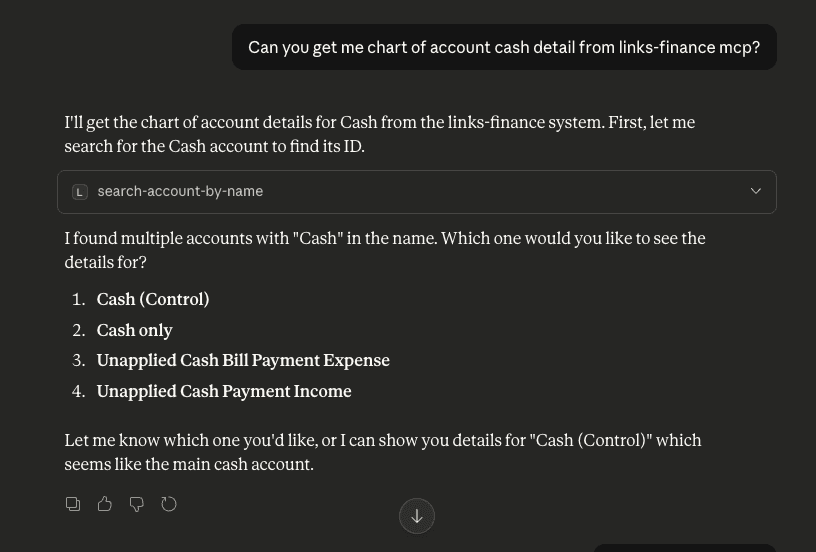
Run a Test Prompt
Type the following prompt to validate that the tool can fetch real data:
Can you get me my chart of accounts detail from the links-finance mcp?
Troubleshooting (Local Config Only)
If the connection fails or the plug icon remains orange/red when using the Local Config method:
1. Check Syntax
Ensure your JSON is valid. A common mistake is leaving a trailing comma after the last item in the list, or missing quotes.
2. Verify MCP Key
Ensure you haven't accidentally deleted the word Bearer inside the header string.
- Bad:
"Authorization: 123-abc" - Good:
"Authorization: Bearer 123-abc"