Postman
Test and debug the Links MCP Server using Postman.
Because the Links MCP Server follows the standard Model Context Protocol (HTTP/SSE), you can connect to it directly using Postman without any local adapters or npx scripts. This is the best way to debug connection issues or inspect raw JSON-RPC responses.
Prerequisites
What you need before starting
Ensure you have completed the following:
- Downloaded the Postman App.
- Retrieved your Links MCP Key and your Tenant ID.
Connection Setup
Create MCP Client
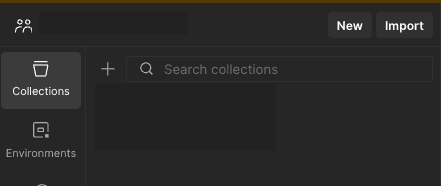
- Open your Postman Desktop App.
- Go to your desired Workspace.
- Click the "New" button (usually located beside the Workspace title or in the sidebar).
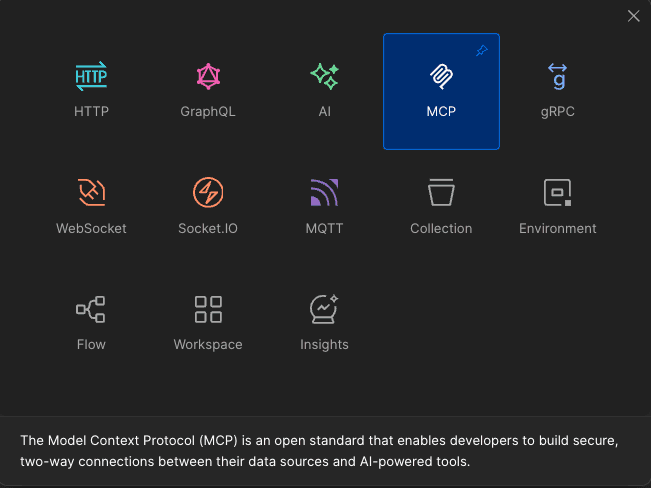
- Select MCP Client from the list of options.
Configure Server Endpoint
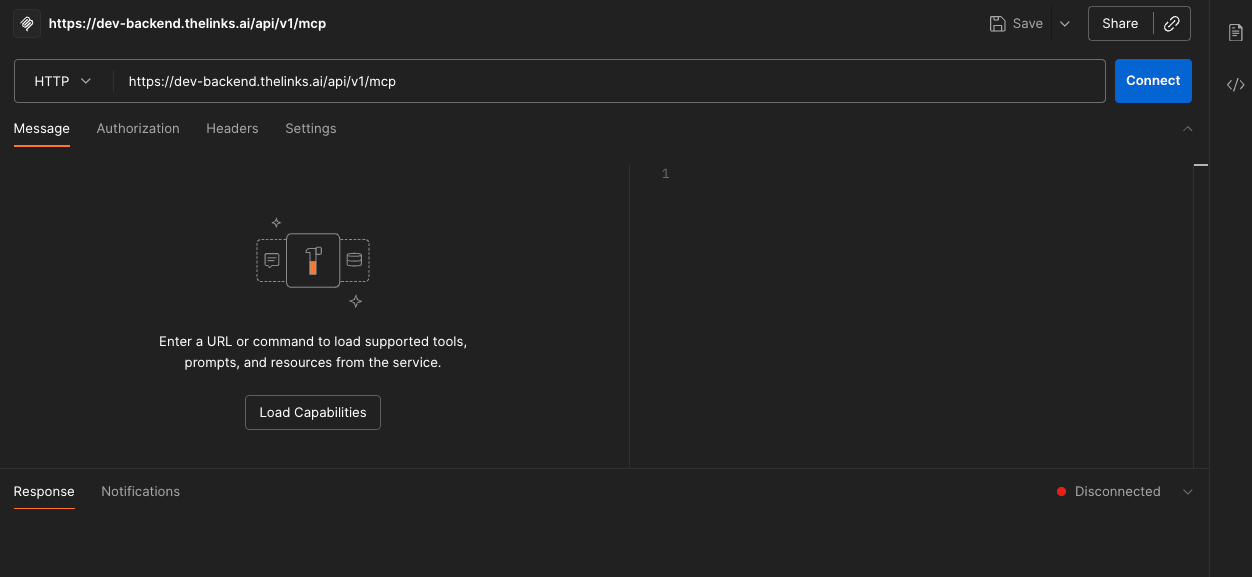
In the configuration panel, enter the connection details:
- Transport Layer Type:
HTTP - Server URL:
https://dev-backend.thelinks.ai/api/v1/mcp
Add Authentication
The server requires a valid Bearer token. You can configure this in one of two ways:
- Click on the Authorization tab in the MCP Client.
- Set Type to
Bearer Token. - Paste your Links MCP Key into the Token field.
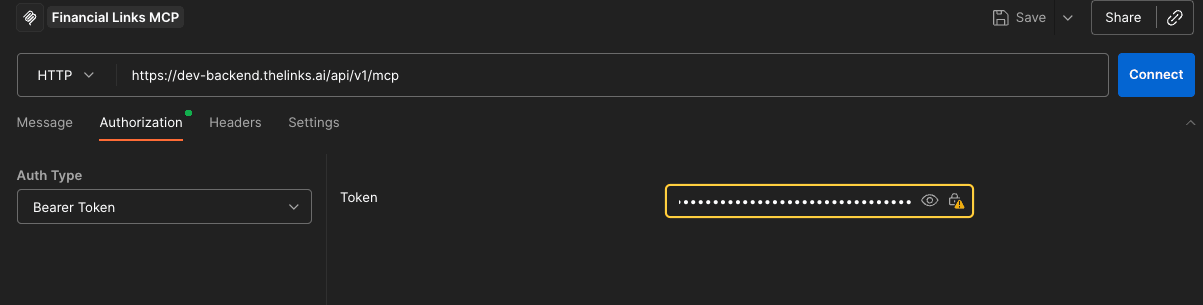
(Postman will automatically attach the correct header for you).
- Click on the Headers tab (next to Configuration).
- Add a new row:
- Key:
Authorization - Value:
Bearer <YOUR_MCP_KEY>
- Key:
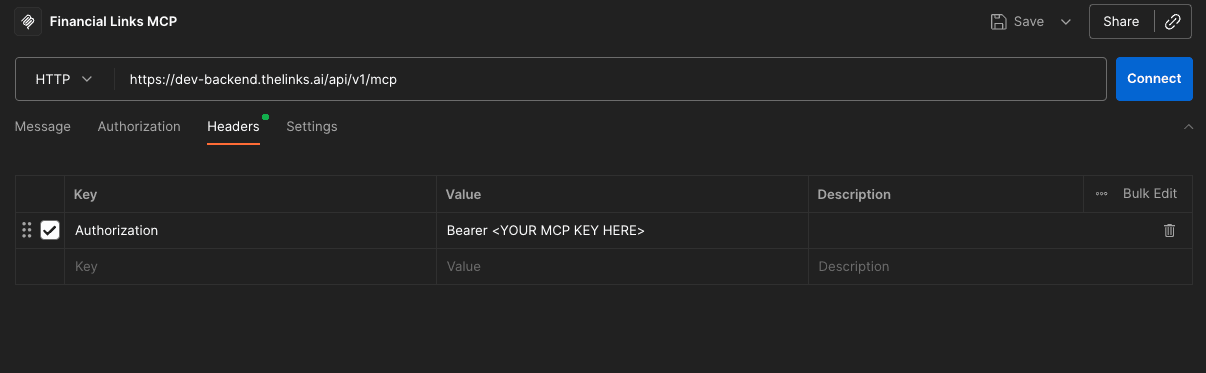
Important: You must manually type the word Bearer followed by a space before pasting your key.
Connect
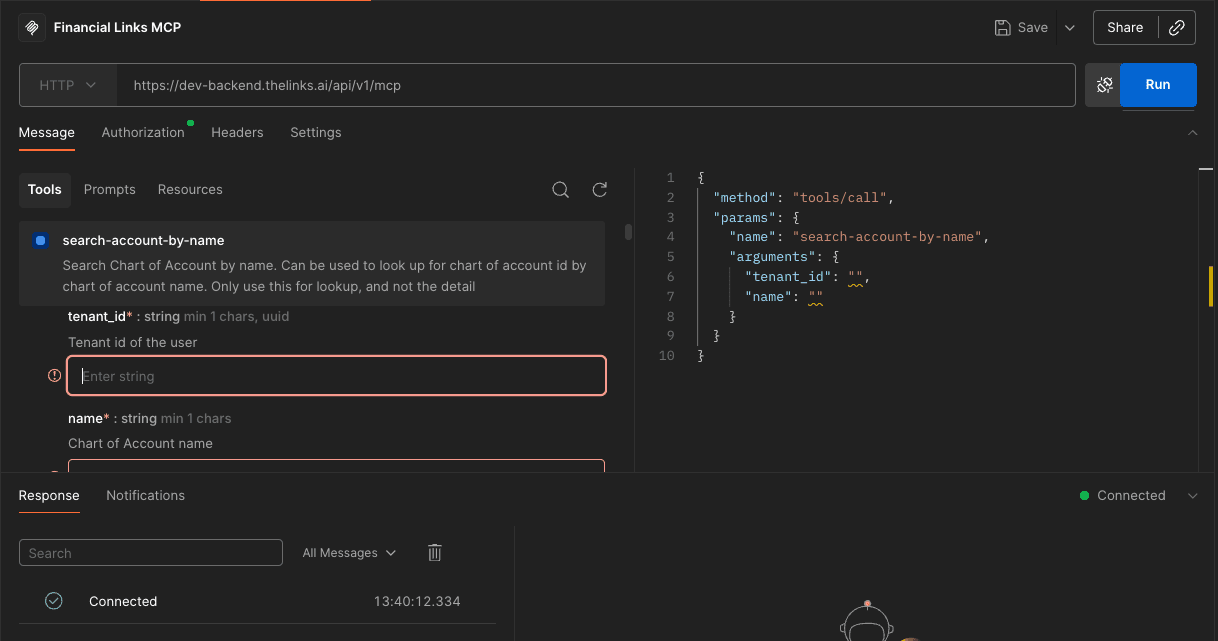
Click the blue Connect button at the top right. Postman will establish a handshake with the Links server. Once connected, the Tools panel in the middle will automatically populate with available functions (e.g., get-chart-of-accounts, search-deal-by-name).
Executing Tools
Once connected, you can interact with your data immediately.
Select a Tool
Click on any tool from the list (e.g., search-account-by-name). The Payload section will automatically update to show the JSON schema required for that tool.
Fill Arguments
Enter the values for the arguments in the JSON editor. For example:
{
  "tenant_id": "<Your Tenant ID>",
  "name": "Cash"
}
Run & Inspect
Click Run Tool. The result will appear in the output panel below, showing the real JSON data fetched from the Links Platform.
Why is this different from Claude?
Claude Desktop cannot make direct HTTPS requests to remote servers on its own yet. It relies on a local "bridge" script (npx mcp-remote ...) to handle the connection. Postman acts as a direct HTTP client, so it speaks directly to your MCP endpoint using standard Headers and Bodies.